How to Fix Critical WordPress Errors (Part 3): Resolving Core Routing and Media Failures

A digital creator, venture builder, and writer specializing in WordPress.
TL;DR: While backend bloat slows your site silently, front-end routing and media failures act as active roadblocks that instantly destroy user trust. This guide breaks down exactly how to force WordPress to regenerate a corrupted .htaccess file to fix massive 404 permalink errors, and how to unblock your media library by adjusting strict server folder permissions and memory limits.
Welcome to the third installment of our WordPress Error Masterclass series.
In Part 1 of this series, we tackled the loud, site-breaking errors (like the White Screen of Death) that you can see immediately when they happen. In Part 2, we went behind the scenes to hunt down the silent errors — the ghost plugins and database bloat that quietly drain your site's speed, happening completely underway without you knowing.
But now, in Part 3, we are confronting a completely different beast, a different category of WordPress errors entirely: Front-End and Media Failures.
These are not silent errors that take your website's performance down without you noticing, nor are they the loud ones that take your whole site offline where everyone can see it. Instead, they act as Active Roadblocks.
Think of it this way: your website is online, your homepage loads perfectly, but when a user tries to perform a specific action, they hit a brick wall. These roadblocks usually come in the form of 404 broken links and frustrating image upload blocks. When you are running a digital storefront like an online store or a content publishing platform like a blog, your visual branding and your page routing are your lifelines. Just imagine when a user clicks a link to buy a product and hits a dead end — their trust in your store vanishes instantly. Or when you cannot upload a product image, your entire content pipeline stalls.
We will be breaking down exactly what these active roadblocks are, why they fall into this specific category, the deadly consequences they bring to your business, and how to surgically fix them so you can keep your digital ecosystem running smoothly.
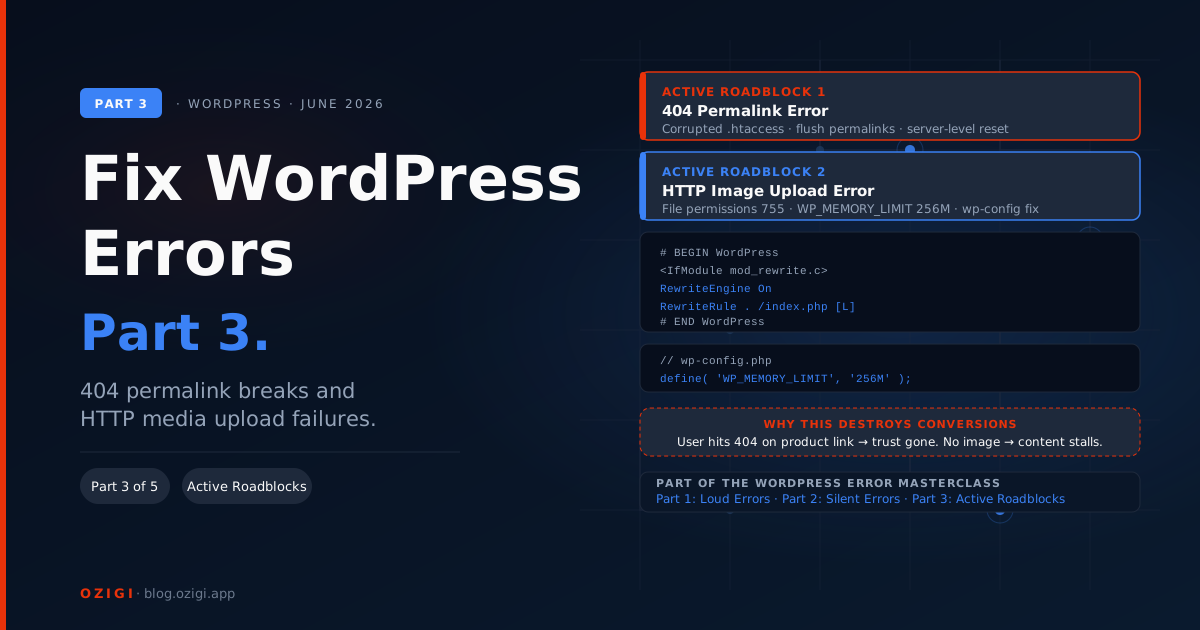
The 404 Permalink Error: Restoring Broken Routes
The Feature
WordPress uses a system — which all of us who build WordPress websites should know — called "Permalinks." For those who might not understand the backend, this system simply turns messy database IDs (like yoursite.com/?p=123) into clean, readable, SEO-friendly URLs (like yoursite.com/my-new-product). This entire routing system is controlled by a core server file called the .htaccess file.
Why it acts as an Active Roadblock
Imagine this scenario: you wake up one fateful morning, log into your WordPress dashboard, check your homepage, and everything looks perfectly fine. But later that day, a customer clicks on a blog post or a product link, and immediately they are slammed with a massive "404 Page Not Found" error.
This often happens entirely by accident. You might have installed a new plugin, updated your active theme, or migrated your site, and it silently corrupted your .htaccess file along the way. Now, imagine what happens to that customer. The trust of that user is completely destroyed because a 404 error makes your business look abandoned. Furthermore, happening behind the scenes, if Google's crawlers try to index your site and hit a wall of 404 errors, they will quickly drop those pages from the search results, erasing your hard-earned SEO traffic.
How to fix it
You do not need to panic or manually recreate your pages. You just need to force WordPress to regenerate your routing rules.
-
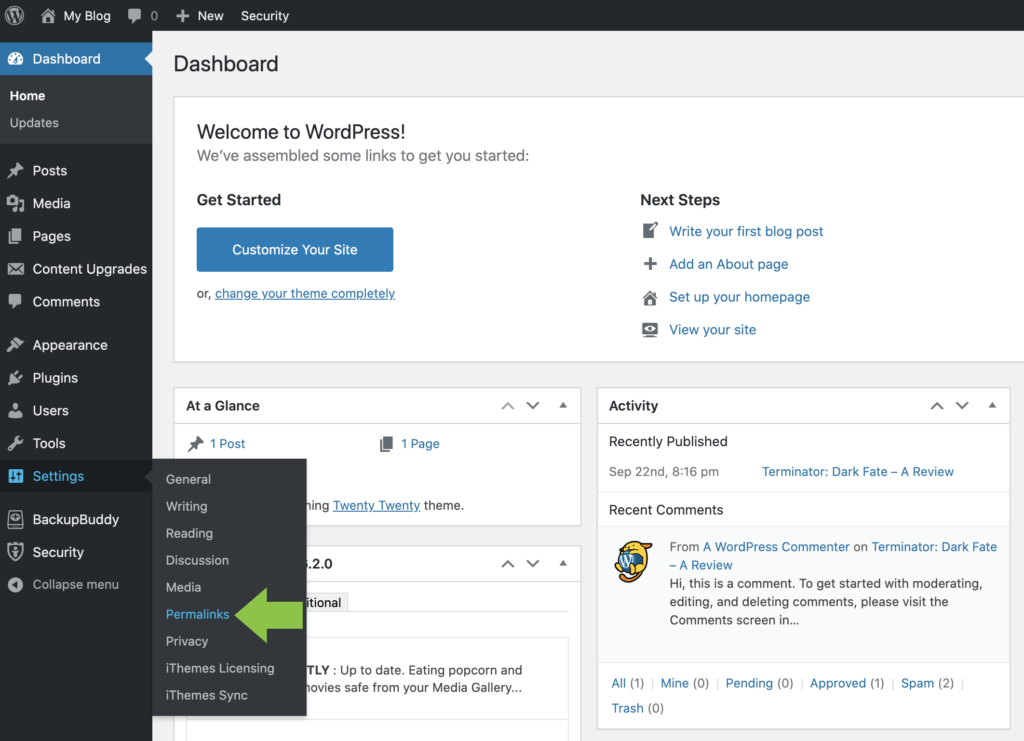
The Dashboard Flush: Go to your WordPress Dashboard, click on Settings, and then Permalinks. Do not change any of the actual settings there — leave them exactly as they are. Simply scroll straight to the bottom and click "Save Changes." This simple action forces WordPress to flush its cache and rewrite the
.htaccessfile correctly. This fixes the issue 90% of the time. -
The Server-Level Reset: If the dashboard trick does not work, log into your hosting cPanel. Open your File Manager and navigate to your
public_htmlfolder (your main root directory). Because.htaccessis a hidden file, click "Settings" in the top right corner of cPanel and check the box that says "Show Hidden Files." Locate the.htaccessfile, right-click to edit it, delete the corrupted code inside, and paste in this exact default WordPress routing rule:
apache# BEGIN WordPress
<IfModule mod_rewrite.c>
RewriteEngine On
RewriteRule .* - [E=HTTP_AUTHORIZATION:%{HTTP:Authorization}]
RewriteBase /
RewriteRule ^index\.php$ - [L]
RewriteCond %{REQUEST_FILENAME} !-f
RewriteCond %{REQUEST_FILENAME} !-d
RewriteRule . /index.php [L]
</IfModule>
# END WordPress
Save the file, and your links will instantly come back to life.
The HTTP Image Upload Error: Unblocking Media Failures
The Feature
Your Media Library is the visual engine of your WordPress website; there is no debating it. It handles everything from your main brand logo to high-resolution article graphics and product images.
Why it acts as an Active Roadblock
Imagine this scenario: you are right in the middle of a major content sprint. You have written a great piece for your blog, but when you try to upload the cover image, WordPress rejects it with a vague, red "HTTP Error." Unlike the loud errors in Part 1 or the permalink breaks, it gives you absolutely no explanation. Without images, your content becomes a boring wall of text.
Many beginners waste hours compressing the image or changing it from a PNG to a JPG, only to get the exact same error. That is because the HTTP error is almost never about the image itself — it is usually a server restriction actively blocking WordPress from saving new files, which is why you just see the upload bar hang and fail.
How to fix it
To unblock your media library, you need to adjust how your server handles folder permissions and processing memory.
-
Adjust File Permissions: Sometimes, an aggressive WordPress security plugin (which you may have installed unknowingly) will accidentally "lock" your media folders to protect them from hackers, which inadvertently blocks you too. Go to your cPanel File Manager and open the
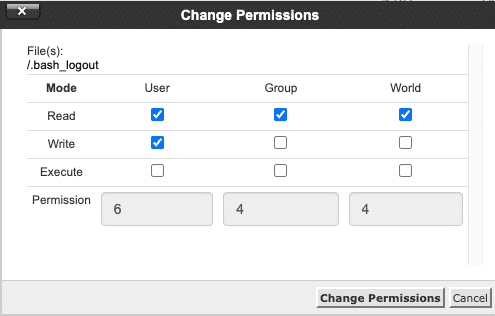
public_htmlfolder. Openwp-content, right-click on theuploadsfolder, and select Change Permissions. Ensure the permission numbers are set exactly to 755. This specific number tells the server that the owner is legally allowed to write and save new files. -
Increase Server Memory Limits: If you are uploading a high-quality visual, another problem is that your server might run out of PHP memory while trying to process the pixels. Inside your cPanel File Manager (
public_html), right-click and edit yourwp-config.phpfile. Scroll down and add this exact line of code right above the "That's all, stop editing!" line:
phpdefine( 'WP_MEMORY_LIMIT', '256M' );
This gives your media library the horsepower it needs to process heavy uploads without failing.
Securing Your Digital Storefront
Building a high-ranking WordPress website requires you to be the architect of your own ecosystem. When you know how to swiftly fix these different categories of errors, your business becomes bulletproof.
By fixing the Active Roadblocks (like the 404 routing permalink break), you stop the massive bounce rate that tells Google your site is broken. When you unblock your media library, you guarantee your visual content pipeline never stalls.
By combining the reactive crash-fixes from our Part 1 Loud Errors, the preventive backend maintenance from our Part 2 Silent Errors, and these front-end routing repairs here in Part 3 Active Roadblocks, you have fully secured your digital architecture. You now have the exact blueprint to keep your WordPress site fast, reliable, and continuously ranking at the top of the search results.
But a secure foundation is only the beginning. Now that your site is fast and stable, we have to protect it from outside threats. In Parts 4 and 5 of this masterclass series, we will be diving into a brand new category: Security & Access Errors. We will uncover exactly how to handle terrifying glitches like Admin Dashboard Lockouts and malicious "Too Many Redirects" loops, ensuring you never lose control of your digital real estate. Stay tuned!
Since you're here: Ozigi also ships a handful of free, no-signup tools — a free cold email generator, a free LinkedIn outreach generator, a free long-form article generator, and a free newsletter generator. Worth a look if any of that's useful to you.
About the author
A digital creator, venture builder, and writer specializing in WordPress.