How to Fix Critical WordPress Errors (Part 2): Advanced Theme & Plugin Management

A digital creator, venture builder, and writer specializing in WordPress.
TL;DR: Fixing a crashed website is only half the job. Poor theme and plugin management acts like a silent snake, draining server memory and killing SEO before you even notice. This guide shows you how to proactively prevent these background errors through plugin audits, lightweight theme management, and strict MySQL database optimization to protect your search rankings and revenue.
WordPress errors fall into two distinct categories: Reactive (Solving) and Proactive (Preventive). We categorize them this way because how you treat them determines whether your digital business survives.
In Part 1, we tackled Reactive errors, specifically the White Screen of Death and 502 Bad Gateway timeouts. These fall under the "solving" category because they are loud. They break your site instantly, locking out users and forcing you to pay attention and fix the problem right then and there.
However, Preventive errors are far more dangerous because they do not announce themselves. They can be compared to snakes in the grass — they quietly poison your website in the background. Unlike the loud errors in Part 1, these background failures do not trigger a single alarm or send an error message to your dashboard. By the time you finally notice your organic traffic dropping or your sales stalling, the damage to your search ranking is already done, which is why prevention is the only real cure.
In Part 2 of this series, we are focusing on the root causes of these silent failures: Poor Theme and Plugin Management.
This lack of management creates the ultimate preventive errors. They slowly drain your server memory, increase your page load times, and drag down your Core Web Vitals. Because there is no sudden crash, you might just assume your hosting network is having a slow day or that your own Wi-Fi connection is poor. Meanwhile, search engine crawlers are constantly logging these slow speeds and quietly dropping your SEO rankings.
To keep your business website alive and running, you must move from solving reactive errors to actively preventing them.
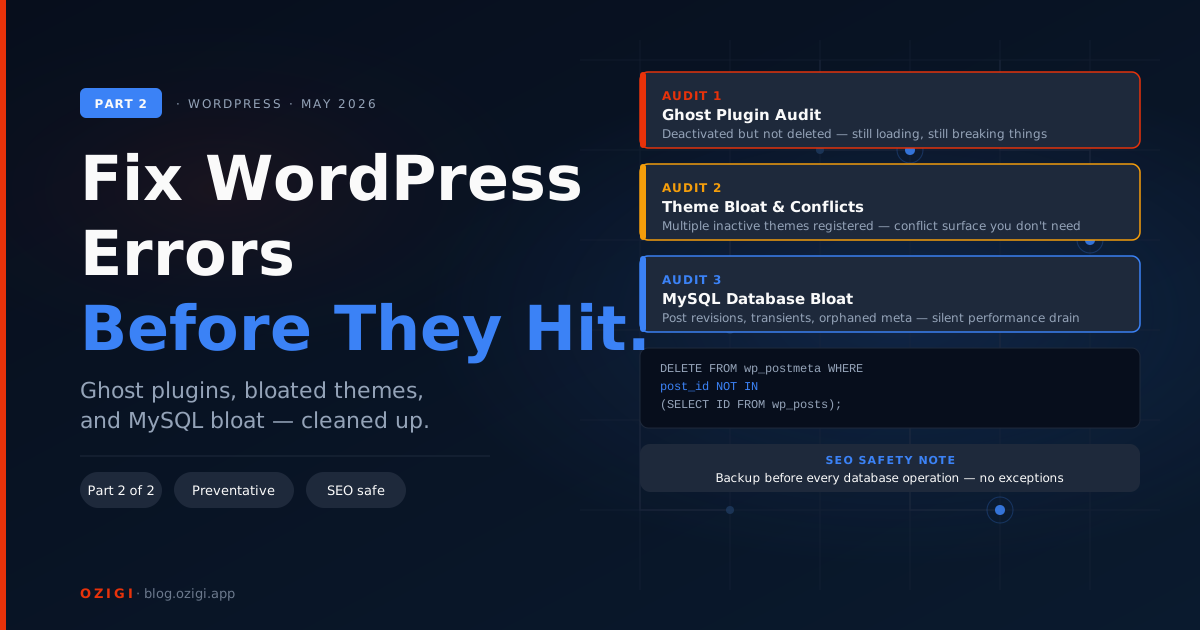
The Plugin Audit: Exorcising Ghost Plugins
The Feature
Installing plugins is the easiest way to add functionality to a WordPress site. But deleting them properly is much harder. When you click "Deactivate" on a plugin you no longer want, the tool is turned off, but it is not completely gone. When your website loads, it still attempts to load data from these deactivated plugins, forcing the server to process far more than it should.

Why it is a Silent Killer
Deactivated plugins leave behind what developers call "ghost data." They abandon useless, orphaned files in your MySQL database and leave leftover scripts in your wp_options table that are set to "autoload." For a beginner, think of "autoload" like leaving ten different heavy gaming apps running in the background of your smartphone. Even if you are not actively playing them, they are silently draining your battery. Every time a user visits your site, your server wastes precious PHP memory trying to load settings for plugins that are not even active. Without any warning, this drain triggers a PHP Memory Exhaustion Error. Google notices this slowness immediately and penalizes your site, meaning these ghost plugins are actively stealing your SEO traffic.
You might wonder: "If I know about this error now, why can't I just wait and solve it when the site actually crashes? Why act now?" You cannot wait because search engines rank sites based on historical reliability. By the time you notice the slowness and decide to fix it, you have already lost months of search visibility that will take a long time to earn back.
How to Prevent It
- Delete Completely: Never leave a plugin sitting as "Deactivated." To remove it entirely, click "Delete" in the WordPress dashboard or manually delete the plugin's folder in
wp-content/pluginsvia your cPanel File Manager. - Clean the Database: Install the Advanced Database Cleaner plugin temporarily. When activated, it will visually scan for and drop the orphaned tables left behind by old plugins.
- Minimize Active Plugins: Keep your active plugin count under 15. Only install what you absolutely need. Many beginners fail to plan their tech stack — they install three different plugins that do the same thing, realize they only need one, and simply deactivate the other two. This creates a massive graveyard of ghost data. Planning your tools means fewer plugins, which means no need to deactivate, resulting in fewer background requests.
Theme Management: Shedding Dead Weight
The Feature
The active theme is the backbone of any WordPress website; it dictates the entire structure, look, and feel of your digital storefront. However, unused themes sitting idle in your dashboard are the primary cause of dangerous preventive errors.
Why it is a Silent Killer
Hoarding unused themes creates unnecessary files for your server to process and, more importantly, opens backdoors for security vulnerabilities. Hackers actively look for old theme files to inject malicious code, leading to a silent Malware Injection Error.
Furthermore, running your business on a bloated "multi-purpose" theme guarantees a Slow TTFB Penalty. TTFB (Time to First Byte) is the number of milliseconds it takes for a user's browser to receive the first piece of data from your server. A slow TTFB tells search engines your site is poorly built, causing your rankings to drop regardless of your content quality.
You might wonder: "Why can't I just wait and solve it when the error occurs?"
Because once a hacker exploits a theme backdoor, Google will flag your site with a red "This site may be hacked" warning. Your user trust drops to zero instantly, and recovering from a search engine blacklist takes months of grueling work.
How to Prevent It
- Keep Only Two Themes: Delete everything except your active theme and one default fallback (like Twenty Twenty-Four).
- Always Use a Child Theme: This protects your custom code from being wiped out during automatic theme updates, preventing silent architectural breaks.
Database Optimization: Clearing MySQL Bloat
The Feature
WordPress has a built-in autosave feature that stores a new "revision" of your post every time you save a draft.

Why it is a Silent Killer
If you revise a post 40 times, WordPress saves 40 full copies in your database. With 100 articles, you suddenly have 4,000 useless rows of data clogging your MySQL database. When a visitor requests a page, your server must sift through this massive bloat. This falls under the preventive category because the database does not warn you as it fills — it quietly builds pressure until it triggers a fatal Error Establishing a Database Connection, taking your storefront offline without notice.
You might wonder: "Why can't I just wait and solve it later?"
Because when that connection error hits, you are 100% offline. If a potential client or a search crawler visits at that moment, they hit a dead end, severely damaging your business reputation.
How to Prevent It
- Limit Revisions: Locate your
wp-config.phpfile and add this code:phpdefine( 'WP_POST_REVISIONS', 3 ); - Sweep the Bloat: Use WP-Optimize temporarily to sweep and delete thousands of existing old revisions.
The Staging Environment: Stop Testing in Production
The Feature
A staging environment is a private, hidden clone of your live website used exclusively for testing new features and updates away from the public eye.
Why Ignoring it is Deadly
Clicking "Update All" on your live site is a gamble. Once an update is pushed live, a Fatal PHP Conflict is instantaneous. If a conflict breaks your site, your users see a distorted page immediately, and you lose revenue the very second it happens.
You might wonder: "Why can't I just fix it if it breaks?"
Because the goal of a venture builder is zero downtime. The only way to stop a break is to test it before it ever reaches your audience.
How to Prevent It
- Use a 1-click staging tool (like WP Staging).
- Apply updates to the staging folder first.
- Verify the layout and functionality before pushing the updates to the live site.
Securing the Foundation for Maximum SEO
Building and maintaining a high-functioning WordPress website requires setting up strict measures to stop silent errors from forming. By auditing plugins, locking down themes, and cleaning your database, you cut off the silent snakes before they can bite.
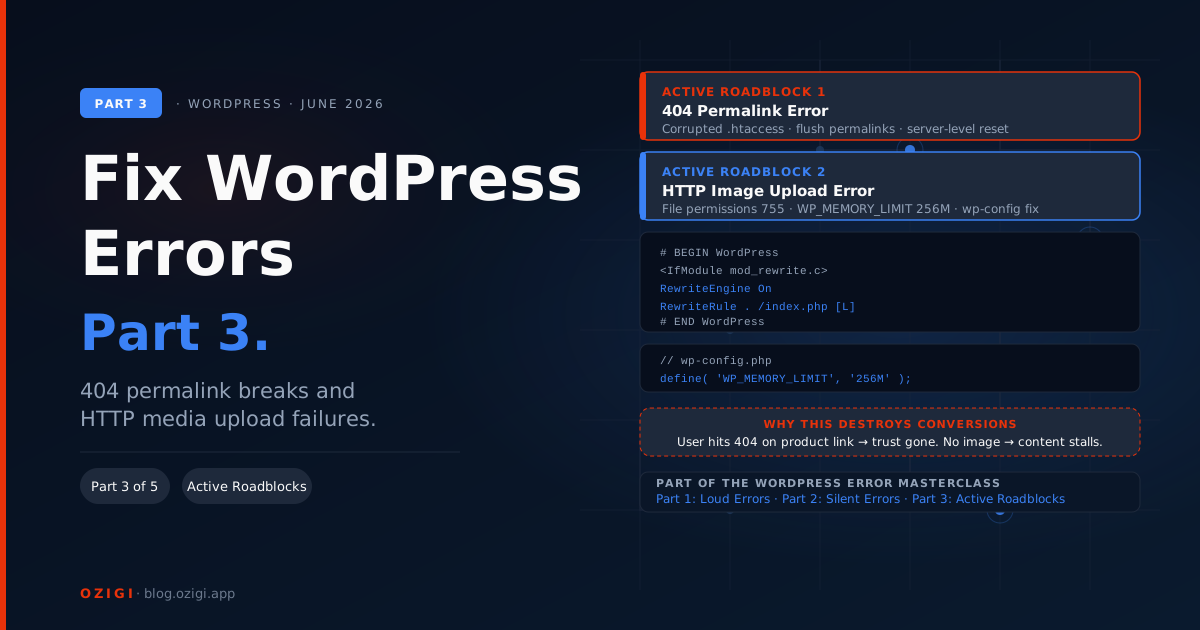
Ultimately, search engines reward websites that are fast, clean, and structurally sound. When you eliminate background bloat, search engine crawlers can index your pages faster, passing that SEO value directly to your bottom line. With your foundation secure, you are ready for the final layer of protection. In Part 3 of this series, we will resolve the most dangerous front-end failures: the 404 permalink breaks and media upload blocks that actively destroy user trust.
About the author
A digital creator, venture builder, and writer specializing in WordPress.