How to Fix Critical WordPress Errors Without Losing Your SEO Ranking

A digital creator, venture builder, and writer specializing in WordPress.
TL;DR: The White Screen of Death, database connection failures, and 502 Bad Gateway errors can destroy your site's SEO rankings. This guide breaks down how to safely use
WP_DEBUGand your cPanel File Manager to diagnose and fix these issues without breaking your site architecture or losing organic traffic.
Running a closed-loop professional ecosystem—which is your website on WordPress—means uptime is everything. Imagine this scenario: you hit "update" on a minor plugin, refresh the page, and get nothing. It sounds like a cliché, but it is an incredibly common WordPress error. This error can vary. Sometimes a pure, blank white screen appears. Other times, a massive database error text flashes on the screen, which is weird—like, check this out: your web page is showing, but at the top, you see one big red text showing an error code message. You know exactly what I mean.
Before anything else, panic immediately starts setting in because every single minute of downtime happening due to these errors is costing you organic traffic, sales, and damages trust with your users.
When this happens, the most common advice you will find in troubleshooting guides is to simply "just deactivate all your plugins." While this old trick might eventually identify the problem, it is a terrible approach for a live business site. I am telling you this out of pure experience. Stripping your website down to its bare bones breaks your site architecture, destroys the user experience for anyone currently browsing, and sends chaotic signals to search engine crawlers, which is super bad for the ultimate aim of our website: SEO results. It is like adding more fuel to the fire.
Instead of guessing, panicking, and escalating things further by following outdated guides, you need a precise diagnostic method. Drawing from my own experience building and running WordPress websites for digital businesses, this first part of our troubleshooting series will break down exactly how to identify and fix three of the most notorious major WordPress errors that cause downtime. Most importantly, we will focus on solving these errors in a way that keeps your hard-earned SEO rankings completely safe.
Stop Guessing and Turn on the Lights
Before we tackle the specific errors, you need to know how to see what is actually broken. WordPress often hides the exact cause of a crash for security reasons—which is a big scratching-of-heads moment for many creators, but don't worry, we will cover that in this series.
To find out exactly what is broken, you must turn on a built-in feature called WP_DEBUG. This forces WordPress to display the exact line of code causing the crash.
To activate it safely, follow these steps:
- Log into your website's file manager. Picture your hosting dashboard (like cPanel): scroll down until you see a folder icon labeled "File Manager" and click it. You can also use an FTP client.
- Locate the
wp-config.phpfile in your root folder (usually calledpublic_html). You can use the search box at the top right to find it easily. - Right-click and open the file, then look for the line that says:
define( 'WP_DEBUG', false ); - Change the word
falsetotrue. - Save the file, go back to your website, and refresh.
Now, instead of a blank page, you have your diagnostic tool running. Let's look at the three major errors and how to fix them.
Error 1: The White Screen of Death (WSoD)
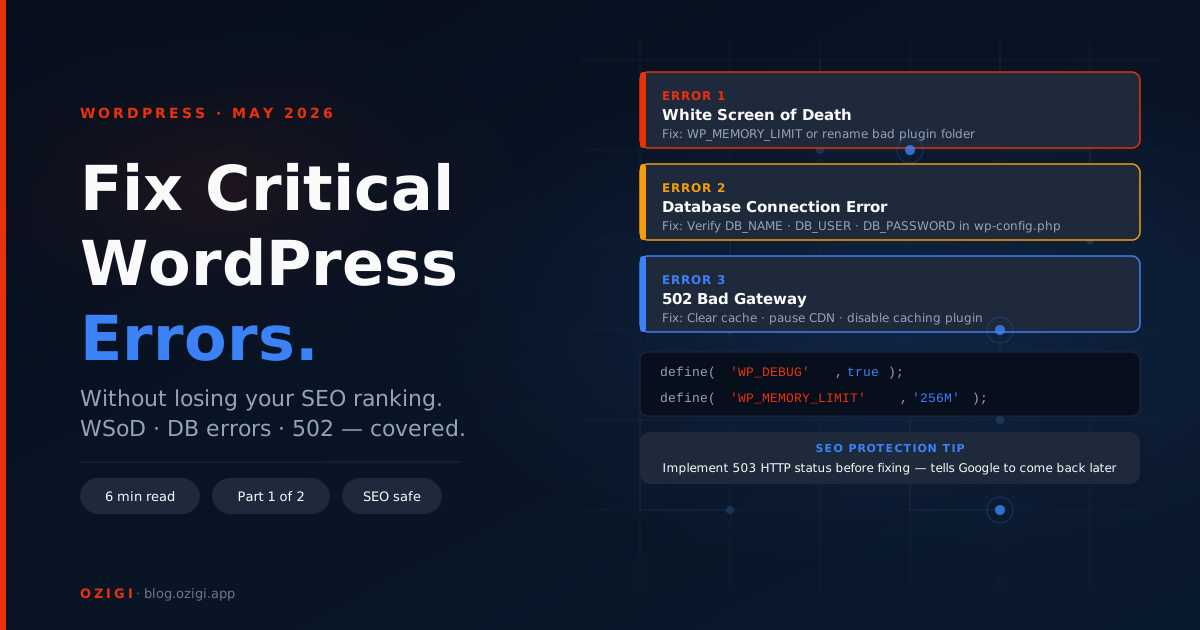
The WSoD is terrifying because it gives you zero information—just white space. Imagine a completely white color on your page and nothing else. Once you turn on WP_DEBUG, the error message will show, and what it displays as the cause of the error will usually boil down to two main culprits:
- Memory Limit Exhaustion: This is the cause when your website is trying to process a task that requires more power than the memory limit your server allocated to you. To fix this, go back to that
wp-config.phpfile. Right under the line where you just typeddefine( 'WP_DEBUG', true );, add this new line of code:define( 'WP_MEMORY_LIMIT', '256M' );This gives your server more breathing room by extending the limit, and your site will usually come right back online. - The Specific Plugin Conflict: The debug message might also point to a specific plugin (e.g.,
wp-content/plugins/bad-seo-plugin/). You now know exactly who the offender is! Go into your cPanel File Manager, navigate to thewp-content/pluginsfolder, and simply rename that specific broken plugin folder. Change it frombad-seo-plugintobad-seo-plugin-disabled. WordPress will ignore only that plugin, bringing your site back instantly without ruining your whole ecosystem.
Error 2: Error Establishing a Database Connection
This error means your WordPress website (the front-end) has completely lost communication with your database (where all your posts, users, and data are stored). It is like the brain disconnecting from the body.
The most common cause? Bad credentials. If you recently migrated your site or changed hosting, your wp-config.php file might have the wrong database password.
The Fix:
- Go to your cPanel dashboard and look for the section titled "Databases."
- Click on "MySQL Databases" and scroll down to the "Current Users" list. Take note of the exact database name and the user attached to it.
- Open your
wp-config.phpfile in the File Manager and check the lines forDB_NAME,DB_USER,DB_PASSWORD, andDB_HOST. Ensure these match exactly what you just saw in the MySQL section. If just one letter or symbol in the password is wrong, the entire site breaks. Update the file with the correct details and save.
Error 3: The 502 Bad Gateway
This error happens when your server, which is acting as a gateway, receives an invalid response from another server. In simple terms, this is when your website is taking too long to load a script, and the server just gives up after some minutes and throws that 502 error on your screen.
The Fix: Often, the main culprit is a caching issue caused by a caching plugin in your WordPress database or a Content Delivery Network (CDN) like Cloudflare acting up. The fastest fix is to first clear your browser cache. Second, temporarily pause your CDN from your hosting dashboard. If you are using a caching plugin, go to your File Manager and temporarily rename the caching plugin's folder to disable it (just like we did for the WSoD). Refresh the page to see if the site loads. If it does, you know the server is fine and the CDN or caching plugin just needs to be reconfigured.
Conclusion: Protecting Your SEO Visibility
Whether you are facing a White Screen of Death, a broken database connection, or a 502 Gateway timeout, fixing these errors swiftly is crucial. But how you handle the downtime caused by the errors determines your website's results.
Look at how swiftly solving these errors protects your website's SEO and keeps your search visibility strong: Google's crawlers do not care that you are fixing your website. If they visit your website while it is throwing a 502 error or displaying a blank white screen, they log it as a broken site. If this happens frequently, your SEO rankings will start dropping.
Before you start digging into your File Manager to fix these errors following this article, you must protect your traffic.
How do you do that? Implement a temporary 503 HTTP Status Code. Since your WordPress admin dashboard is likely broken during these errors, you cannot use a plugin. Instead, go to your File Manager, find your .htaccess file, and add a temporary redirect rule pointing to a basic maintenance HTML page. A 503 code explicitly tells Google, "The server is temporarily unavailable due to maintenance." Unlike a normal error, the 503 tells search engines to pause and come back later, ensuring you are not penalized for the downtime.
By using precise diagnostics and proper solutions like the ones in this article series, you can handle any critical WordPress failure with confidence, keeping your business running and your search rankings secure.
Stay tuned for Part 2 of this series, where we will dive deeper into two more core errors, advanced theme management, and keeping your digital foundation perfectly stable.
Frequently Asked Questions
What is WP_DEBUG and is it safe to enable on a live site?
WP_DEBUG is a built-in WordPress debugging tool that shows PHP errors and warnings. While it's technically safe to enable on a live site, the errors displayed can confuse visitors. A better approach is to log errors to a file instead of displaying them. You can do this by adding define( 'WP_DEBUG_LOG', true ); to your wp-config.php file, which sends errors to /wp-content/debug.log instead of your front-end.
Can I recover my site if I accidentally break it while making these changes? Yes. If you make a mistake in wp-config.php, you can revert it through your File Manager. If the site is completely broken, most hosting providers have automated backups you can restore from. Always create a backup before making changes to critical files.
How often should I check my site for errors? Set up error monitoring through plugins like MonitorWP or Solid WP. These monitor your site continuously and alert you to issues before they impact your visitors or SEO. At minimum, check your WordPress error log weekly.
Is the 503 HTTP Status Code method better than just fixing the error quickly? Yes, for SEO purposes. The 503 code tells search engines "come back later," which prevents them from marking your site as permanently offline. If you can fix an error within a few minutes, the 503 strategy might not be necessary. For issues that take hours to resolve, it's essential.
Having trouble with WordPress errors? Reach out with your specific issues. Part 2 of this series will cover advanced troubleshooting for theme conflicts, custom code errors, and strategies for preventing downtime altogether.
About the author
A digital creator, venture builder, and writer specializing in WordPress.